

Launching a website for your business won’t be your last step. If you want your site to be successful, you’ll need to know how visitors are interacting with your website. What is bringing visitors to your website? Where and why are your visitors abandoning your website? What persuaded your visitors to act? This is where Hotjar comes in.
What is Hotjar?
Hotjar is an all-in-one analytics and feedback solution. It enables users to see exactly how users engage with your site. It gives you interactive heatmaps of where they scroll to and where they click. Once you have it installed, it also records user sessions. You can use the data collected by Hotjar to discover what parts of your site are working and the areas people are skipping, avoiding or becoming stuck at.
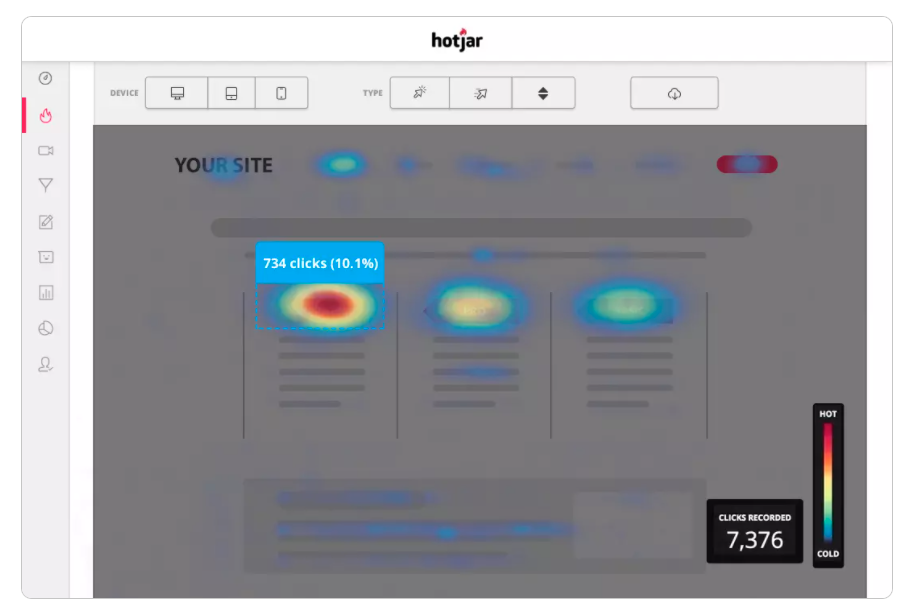
By using Hotjar, you may realise that the most important information on your page is at the bottom. If your aim is to get registrations but people have to scroll to the bottom to do so, how many are giving up and leaving your site? It makes sense to bring the information higher up the page to increase your conversions.
When you view a few recorded ‘user journeys’ on your website, you may notice people pause in a certain area. Is this because it is confusing? Perhaps a link is broken or the text doesn’t make sense. Seeing exactly where a user gets ‘stuck’ can help you identify areas that need attention.
How to Install Hotjar Tracking Code
Just like most analytics tools, you need to include a small snippet of javascript on all pages you want to collect data from.
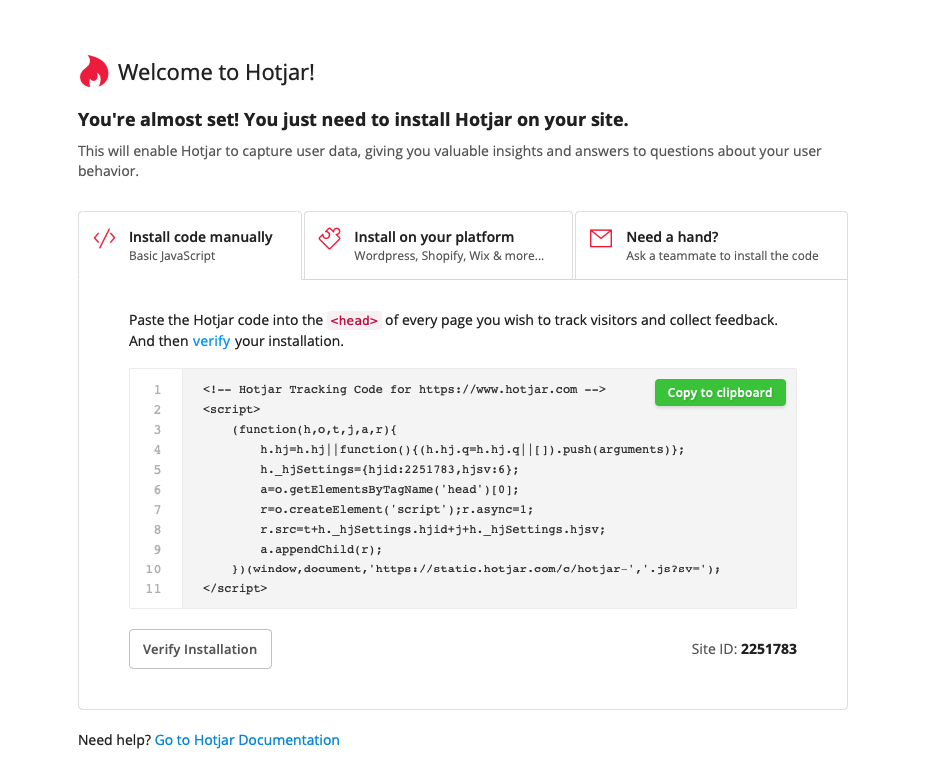
To help you get started, here are the steps on how you can install Hotjar tracking code using WordPress, Squarespace and Google Tag Manager.
Installing Hotjar with WordPress
Before installing Hotjar, make sure to check your WordPress version. The Hotjar plugin is only compatible with WordPress 4.6 or higher. If you use the plugin on lower versions, it may break your site.
- Select Add New within your WordPress Plugin menu
- Search for Hotjar and install the Hotjar plugin
- Go to Settings and click Hotjar from the dropdown
- Click on Hotjar Site List to find your Hotjar Site ID
- Copy the Site ID for the site you wish to install the tracking code for
- Go back to Hotjar Settings in WordPress and paste the Site ID under Hotjar ID
- Click ‘Save Changes’ and verify installation
Installing Hotjar with Squarespace
If you have a Premium Squarespace plan, you can install the tracking code on your site. Follow these steps to add the custom javascript on your site.
- Login to your Hotjar account
- Copy the tracking code from the Hotjar admin
- Click on Settings in your Squarespace dashboard
- Go to Advanced and click Code Injection
- Paste the tracking code in the header section text area
- Click ‘Save’ before closing the window
Installing Hotjar with Google Tag Manager
After adding a new site in Hotjar, it can auto-detect if your site has a GTM container. Then follow the steps below to install Hotjar tracking code.
- Open your Hotjar dashboard
- Click ‘Sign-in To Google Tag Manager’
- Choose the account with the GTM container you want to publish Hotjar into
- Confirm your choices and click allow
- Select your GTM Account and Tag Container
- Click ‘Create And Publish Tag’
- Click ‘Confirm and Create’
- Wait a few minutes, then click Verify Installation
- Follow the Verify Installation prompt
Installing Hotjar Manually
If you prefer to install the tracking code manually, follow the below instructions.
- Check if your platform is compatible with Hotjar here
- Sign in to your Hotjar account and go to Sites list
- Click the tracking code button for the site you want to track
- Click ‘Copy to Clipboard’
- Paste the tracking code into the section of your website
- Check your Hotjar Site Dashboard to verify the installation
If you don’t want to install Hotjar manually or you’re using a different platform, check out Hotjar’s complete list of installation guides here.
What’s next?
Once your tracking code is installed, you can start using any of Hotjar’s features including heatmaps, recordings and feedback widgets.
Heatmaps
Heatmaps share a visual representation of your customers’ clicks, taps and scrolling behaviour. With this technology, you can visualise behaviour to understand what users want, care about and do on your site. Follow the steps below to create your first heatmaps:
- Login to your Hotjar account
- Go to Heatmaps dashboard and click New Heatmap
- Enter the heatmap name
- Choose the Number of Pageviews you want to capture
- Set up Page Targeting
- Click ‘ Create Heatmap’ to save your Heatmap settings

In this step, you can select to target users on a specific page, one of multiple similar pages, or when users trigger a JavaScript snippet.
Recordings
Eliminate guesswork with recordings of real visitor behaviour on your site. By seeing each visitor’s clicks, taps and mouse movements, you can identify usability issues. Recordings are shareable, and you can tag sections and make notes.
Here are the steps for activating session recordings on Hotjar:
- Login to your Hotjar account
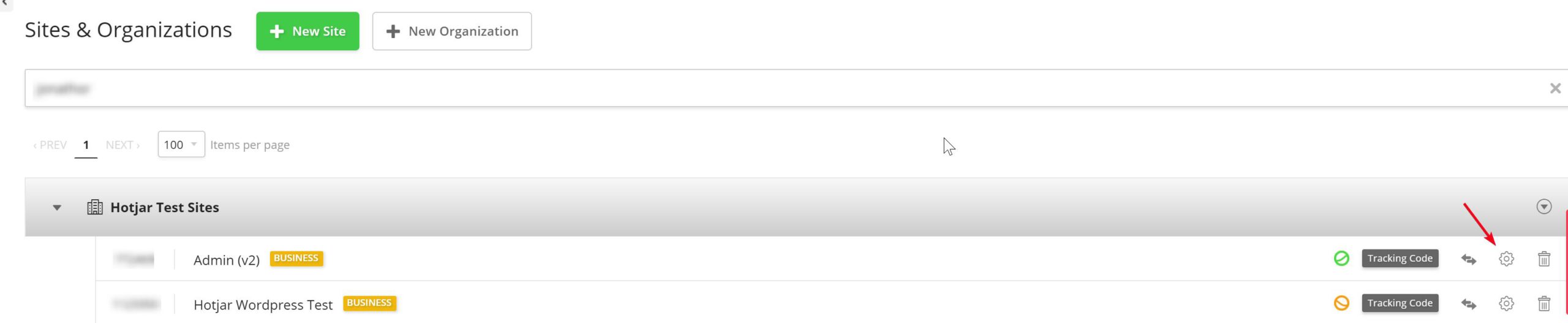
- Click on Settings, then Sites & Organizations
- Select the Site you want to toggle Recordings on or off for
- Click ‘Session Capture’ to toggle data capture on or off
Feedback Widget
Take Hotjar one step further and engage with your users by targeting questions to specific visitors anywhere on your desktop or mobile website. You can also give your users an easy way to leave instant feedback about their experience.
- In your Incoming Feedback dashboard, click on Setup Incoming Feedback
- Name your Incoming Feedback widget
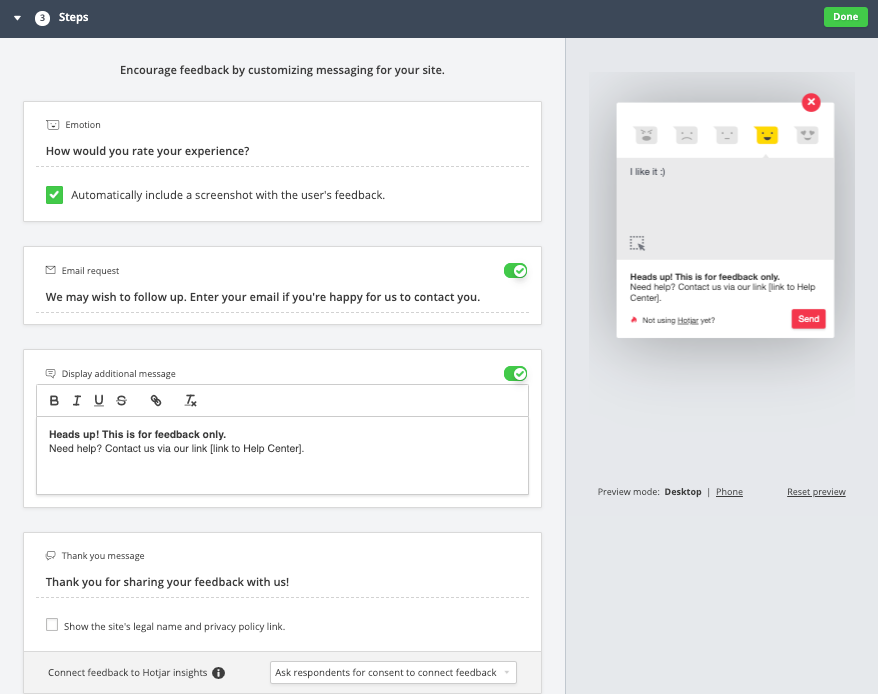
- Customise your widget to fit your branding style
- Customise the messages or prompts shown to your users
- Set up Page Targeting
- Add an email for Forward Feedback
- Activate your Incoming Feedback
In this step, you can select to target users on a specific page, one of multiple similar pages, or when users trigger a JavaScript snippet.
Conclusion
Whether you have a small business or a worldwide enterprise, Hotjar is a valuable tool when it comes to understanding your users so you can give them what they want.
If you want to give it a try, Hotjar offers a free forever plan which gives you access to 100 snapshot recordings per day, 3 snapshot heatmaps and 2000 pageviews per day. Once you’re ready to level up, the paid plan starts at $39 per month. For more information, you can visit Hotjar’s pricing page.
Give it a try, and let us know in the comments below how you use Hotjar to improve your website experience.